How To Scan Object For 3d Printer
How To Scan Objects For 3d Printer
Introduction
3D printing has been around for a while, and it’s a great way to create unique objects that can be used for a variety of purposes. But what if you want to create an object that already exists? That’s where 3D scanning can be a useful tool. 3D scanning is the process of gathering data from an object and creating a 3D model of it. This model can then be used to create a 3D printing file, which can be used to print the object in 3D. In this tutorial, we’ll show you how to scan an object for 3D printing.
Step 1: Prepare The Object
The first step in the process is to prepare the object for scanning. You should make sure that the object is clean and free of any debris or dirt. You should also make sure that the object is placed in a well-lit area so that it can be easily scanned. It’s also important to make sure that the object is placed on a flat surface, so that it can be easily scanned without any distortions. Finally, it’s important to make sure that the object is placed in a position that will be easy to scan.
Step 2: Choose a Scanner
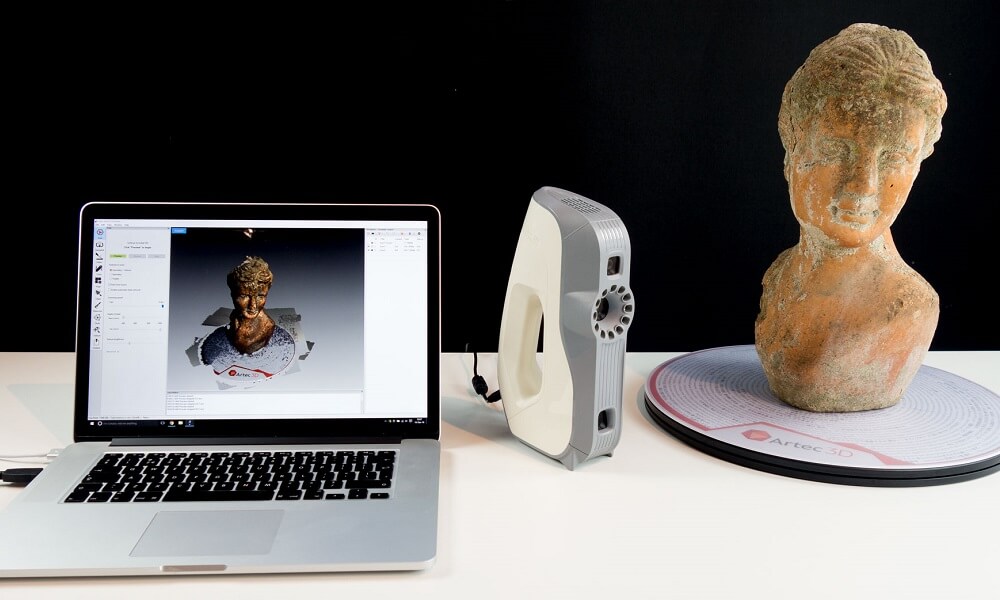
Once the object has been prepared, the next step is to choose a scanner. There are a variety of scanners available, including handheld scanners, desktop scanners, and even mobile apps that can be used to scan objects. The type of scanner you choose will depend on your budget and the complexity of the object you’re scanning. For instance, if you’re scanning a complex object, you may want to opt for a higher-end scanner that can capture more detail. On the other hand, if you’re scanning a simpler object, a handheld scanner or mobile app may be sufficient.
Step 3: Set Up The Scanner
Once you’ve chosen a scanner, the next step is to set it up. Depending on the type of scanner you’ve chosen, this may involve connecting the scanner to a computer or setting up the scanner in a specific way. For instance, if you’ve chosen a handheld scanner, you may need to place the scanner in a specific position so that it can capture the data from the object. If you’ve chosen a desktop scanner, you may need to connect it to a computer and install the necessary software.
Step 4: Scan the Object
Once the scanner has been set up, the next step is to scan the object. Depending on the type of scanner you’ve chosen, the process may involve using a mobile app, or pressing a button on the scanner. Once the object has been scanned, the data will be sent to the computer, where it can be processed and turned into a 3D model. It’s important to note that the scanning process may take a few minutes, depending on the complexity of the object being scanned.
Step 5: Clean Up The Model
Once the object has been scanned and the 3D model has been created, the next step is to clean up the model. This may involve removing any unwanted artifacts, such as dust or dirt, or smoothing out any rough edges. It’s also important to make sure that the model is accurate, so that it can be accurately printed in 3D. Once the model is clean and accurate, it can be saved and prepared for printing.
Step 6: Print the Model
Once the model has been cleaned up and saved, the next step is to print it. This may involve using a 3D printer, or sending the file to a 3D printing service. Depending on the type of printer you’re using, the process may take a few minutes or several hours. Once the object has been printed, it can be used for a variety of purposes, such as creating prototypes, or creating models for 3D printing.
