Import 3d Model Into Unreal Engine
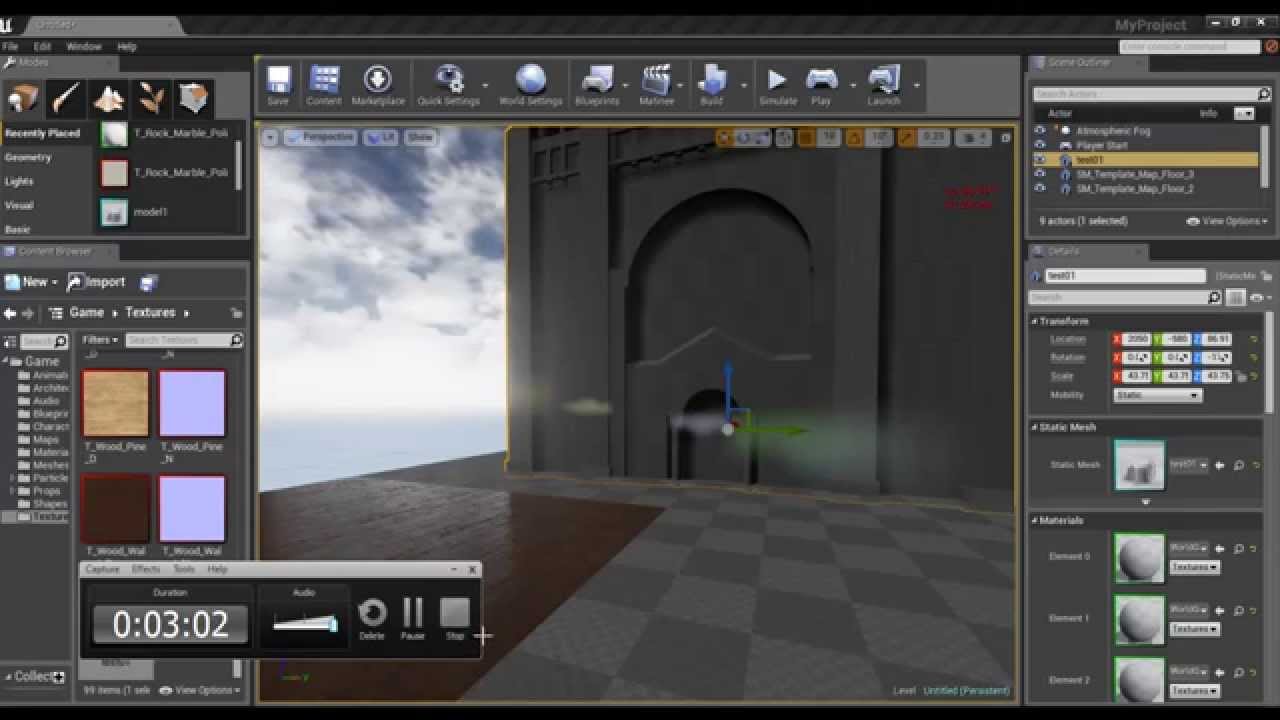
How to Import 3D Model Into Unreal Engine
Unreal Engine is a powerful game engine used by developers to create engaging and immersive 3D video games. This powerful engine is capable of generating stunning visuals and realistic visuals that can be used in a variety of game genres. It is also capable of integrating 3D models into the game environment. This tutorial will show you how to import 3D models into Unreal Engine.
What You Need To Know
Before you begin, you should have a basic understanding of how to use Unreal Engine. This includes knowledge of the interface, the tools, and the properties of the engine. You should also know how to create 3D models using a 3D modeling program. We will be using Blender in this tutorial, but you can use any 3D modeling program.
Preparing The 3D Model
Once you have your 3D model ready, you will need to prepare it for importing into Unreal Engine. This includes exporting the model into a format that the engine can understand. The most common format for 3D models is FBX, which stands for Filmbox. You can export your model in this format using Blender or any other 3D modeling program. Once your model is exported, you are ready to import it into Unreal Engine.
Importing The Model Into Unreal Engine
Now that you have the model ready, you can begin importing it into the engine. The first step is to open the Unreal Editor. Once in the editor, you will need to create a new level or open an existing one. Once you have a level open, you can then go to the Content Browser and select the Import button. This will open the Import window, where you can select the FBX file containing your model.
Setting Up The Model
Once the model is imported, you will need to set up the model in the engine. This includes setting up the materials, textures, and collision. You can do this by selecting the model in the Content Browser and then going to the Details panel. In the Details panel, you can adjust the properties of the model, such as the materials and textures. You can also set up the collision by selecting the Collision tab in the Details panel.
Adding The Model To The Level
Once the model is set up, you can then add it to the level. To do this, you will need to select the model in the Content Browser and then drag it into the level view. This will add the model to the level, where you can then adjust its position, rotation, and scale. You can also add a light to the level to make the model visible.
Conclusion
Importing 3D models into Unreal Engine is a straightforward process. This tutorial has shown you how to prepare your model for import, import the model, and then set up the model in the engine. Once you have done this, you can then add the model to your level and adjust the position, rotation, and scale. With this knowledge, you can now create stunning 3D environments in Unreal Engine.
