Edit Obj Files In Blender
Editing OBJ Files In Blender
Blender is a 3D graphics software program used for creating models, animations, and even games. It is open source and completely free to use, which makes it one of the most popular programs among 3D artists. The program supports a variety of file formats, including OBJ files. OBJ files are incredibly versatile and can be used to store 3D models, textures, and other information related to a 3D scene. In this tutorial, we will look at how to edit OBJ files in Blender.
Step 1: Get the OBJ File
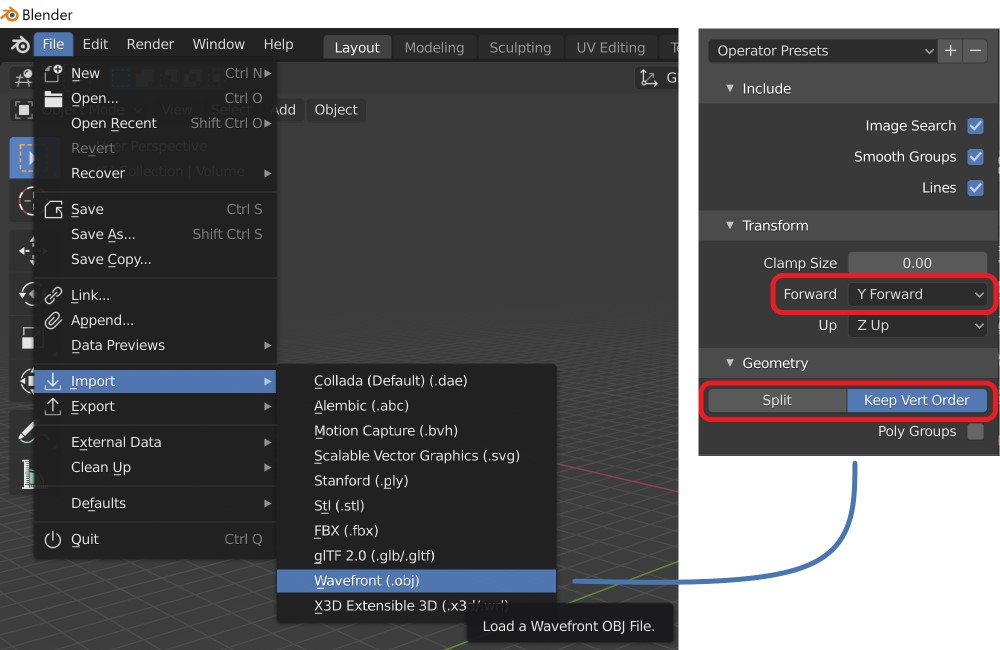
The first step is to get the OBJ file you want to edit. You can find OBJ files online for free, or you can use a 3D modeling program such as Blender to create your own. Once you have the file, open it in Blender by going to File > Import > Wavefront (.obj). This will open the OBJ file in Blender, and you can then start editing it.
Step 2: Select the Objects
Once the OBJ file is opened in Blender, you will need to select the objects you want to edit. You can do this by either clicking on the objects in the 3D view or by selecting them in the outliner. You can also use the select box, which is a tool that allows you to select multiple objects at once. Once you have selected the objects, you can move and rotate them as needed.
Step 3: Edit the Materials
Once you have the objects selected, you can edit the materials applied to them. To do this, go to the materials tab in the properties panel. Here you can select the material you want to edit, and then tweak its properties. You can change the color, texture, and other settings to get the look you want. Once you are done, you can apply the changes to the object.
Step 4: Edit the Textures
If the object uses a texture, you can edit it as well. To edit the texture, go to the textures tab in the properties panel. Here you can select the texture and then adjust its settings. You can change the color, brightness, and other settings to get the look you want. Once you are done, you can apply the changes to the object.
Step 5: Export the OBJ File
Once you are done editing the OBJ file, you can export it by going to File > Export > Wavefront (.obj). This will export the OBJ file with all of your changes included. You can then use the file in other 3D programs or even upload it to a 3D printing service.
Conclusion
Editing OBJ files in Blender is a relatively straightforward process. All you need to do is import the file, select the objects you want to edit, then tweak the materials and textures to get the look you want. Once you are done, you can export the OBJ file and use it in other programs or upload it to a 3D printing service.
