How To Download 3d Models From Sketchfab
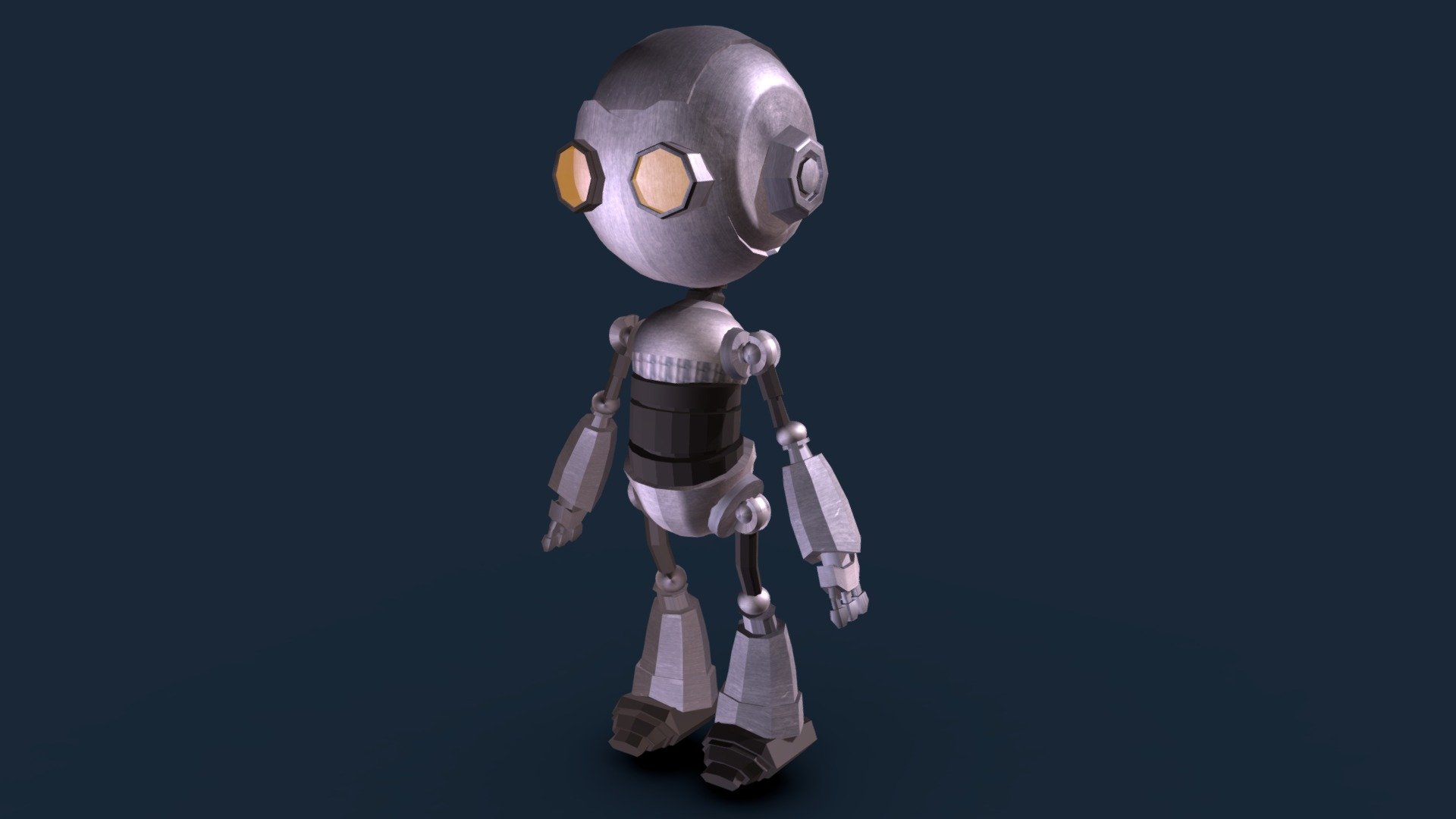
How To Download 3d Models From Sketchfab
Introduction
3D models are one of the most important elements in the world of digital design. They can be used for a variety of purposes, from video game development to architectural visualization. Sketchfab is one of the most popular websites for downloading 3D models, and it’s easy to see why. The site offers a huge selection of 3D models and textures, all of which are free to download. In this tutorial, we’ll show you how to download 3D models from Sketchfab and get them ready to use.
Step 1: Find Your Model
The first step is to find the 3D model you want to download. Sketchfab offers a wealth of 3D models for any purpose, from cars to furniture to characters. To find what you’re looking for, you can browse through the categories or use the search bar. You can also filter your search results to find exactly what you’re looking for. Once you’ve found the model you want, click on it to view it in greater detail.
Step 2: Download the Model
Once you’ve found the model you want, you can download it by clicking the “Download” button in the upper right corner of the page. This will bring up a dialog box, where you can choose the format you want to download the model in. Most 3D applications support the common file formats, such as OBJ, FBX, and STL. Choose the format that works best for you and click “Download”.
Step 3: Unzip the File
Once you’ve downloaded the file, you need to unzip it. This is usually done by right-clicking the file and selecting “Extract”. Once you’ve extracted the file, you should have a folder containing the 3D model and any associated textures.
Step 4: Import the Model
Once you’ve extracted the file, you’re ready to import the 3D model into your 3D application. Each 3D application has its own way of doing this, but it usually involves selecting the “Import” option and then selecting the file you want to import. Once you’ve imported the model, you can start working on it.
Step 5: Apply Textures
Once you’ve imported the model, you may need to apply textures to it. Textures are images that are applied to the surface of a 3D model to give it a more realistic look. Sketchfab often includes textures with the models, so you may not need to create your own. To apply the textures, select the model and then select the “Materials” option. Here, you can choose the textures you want to apply to the model.
Step 6: Export the Model
Once you’ve finished working on the 3D model, you can export it. Exporting the model is similar to importing it: select the “Export” option and then choose the file format you want to export the model in. Once you’ve exported the model, you’re ready to use it in your project.
Conclusion
Sketchfab is one of the best sources for downloading 3D models. It offers a wide selection of models and textures, all of which are free to download. In this tutorial, we’ve shown you how to download 3D models from Sketchfab and get them ready to use. So what are you waiting for? Start downloading and creating today!
