Import Sketchup File To Blender
How to Import Sketchup File To Blender
Introduction
SketchUp is a powerful 3D modeling software used for a wide range of applications including architecture, interior design, landscape design, civil and mechanical engineering, film and video game design, and even space exploration. Blender is a powerful open-source 3D software used for animation, video editing, and video game development. Blender is also used to create 3D models from SketchUp files. This tutorial will show you how to import SketchUp files into Blender.
Step 1: Exporting the SketchUp File
The first step in importing your SketchUp file into Blender is to export the file from SketchUp. To do this, open the SketchUp file you want to export and go to File > Export > 3D Model. This will open a window where you can choose the file format you want to export your SketchUp file in. The recommended file format is FBX, but you can also choose OBJ or DXF. When you have chosen the file format, click on Export and save the file in a location of your choice.
Step 2: Importing the Exported File into Blender
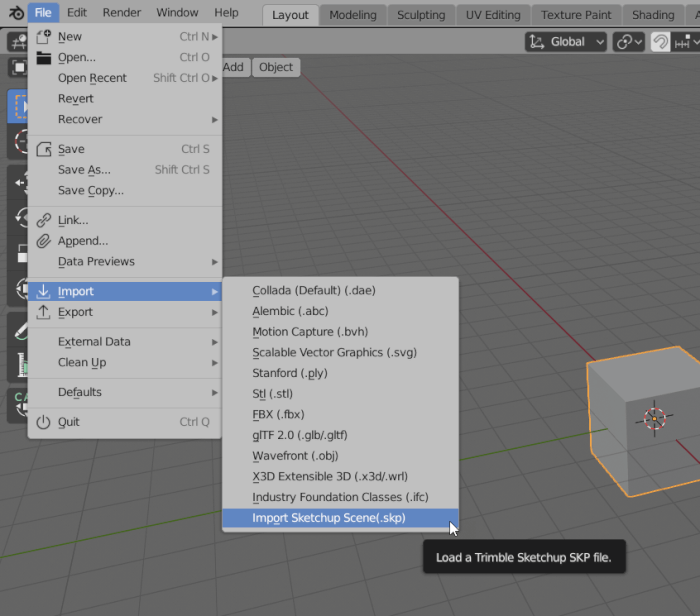
Now that you have exported your SketchUp file, you can import it into Blender. To do this, open Blender and go to File > Import > FBX. This will open a window where you can choose the file you want to import. Select the file you exported from SketchUp and click on Import FBX. This will import your SketchUp file into Blender.
Step 3: Cleaning up the SketchUp Model
Once the SketchUp file is imported into Blender, you need to clean it up. This means removing any unnecessary elements or objects from the scene. To do this, select the object you want to remove and press the X key on your keyboard. This will delete the object from the scene. You can also use the Select All command to quickly select all the objects in the scene and delete them one by one.
Step 4: Adding Materials and Textures
Now that the SketchUp model is cleaned up, you can add materials and textures to it. To do this, go to the Materials tab in the Properties window and select a material or texture you want to apply to your model. You can also use the Texture Paint tab to manually paint textures onto the model. Once you are done, click on the Apply button to apply the materials and textures to the model.
Step 5: Rendering the SketchUp Model
The final step is to render the SketchUp model. To do this, go to the Render tab in the Properties window and select a rendering engine. The most popular rendering engine is Cycles, but you can also use BI or Eevee. Once you have chosen a rendering engine, click on the Render button to start rendering your model. When the rendering is complete, you can save the rendered image as an image file.
Conclusion
In this tutorial, you have learned how to import SketchUp files into Blender and render them. You have also learned how to clean up the SketchUp model and add materials and textures to it. With this knowledge, you can now create compelling 3D models using SketchUp and Blender.
