How To Open Fbx File In Blender
How to Open an FBX File in Blender
FBX files are an Autodesk proprietary file format used to save 3D models, animations, and scenes. For those who are new to 3D modeling and animation, the FBX file format can be intimidating. Fortunately, for those working with 3D models, Blender is a great tool for opening and editing FBX files. In this tutorial, we’ll go over how to open an FBX file in Blender and how to get the best results when working with FBX files.
Step 1: Download and Install Blender
Before you can open an FBX file in Blender, you will need to download and install Blender. Blender is a free and open source 3D modeling and animation software program that runs on Windows, Mac OS, and Linux. You can download Blender from the official Blender website. Once it is installed, you will be ready to open an FBX file in Blender.
Step 2: Open the FBX File
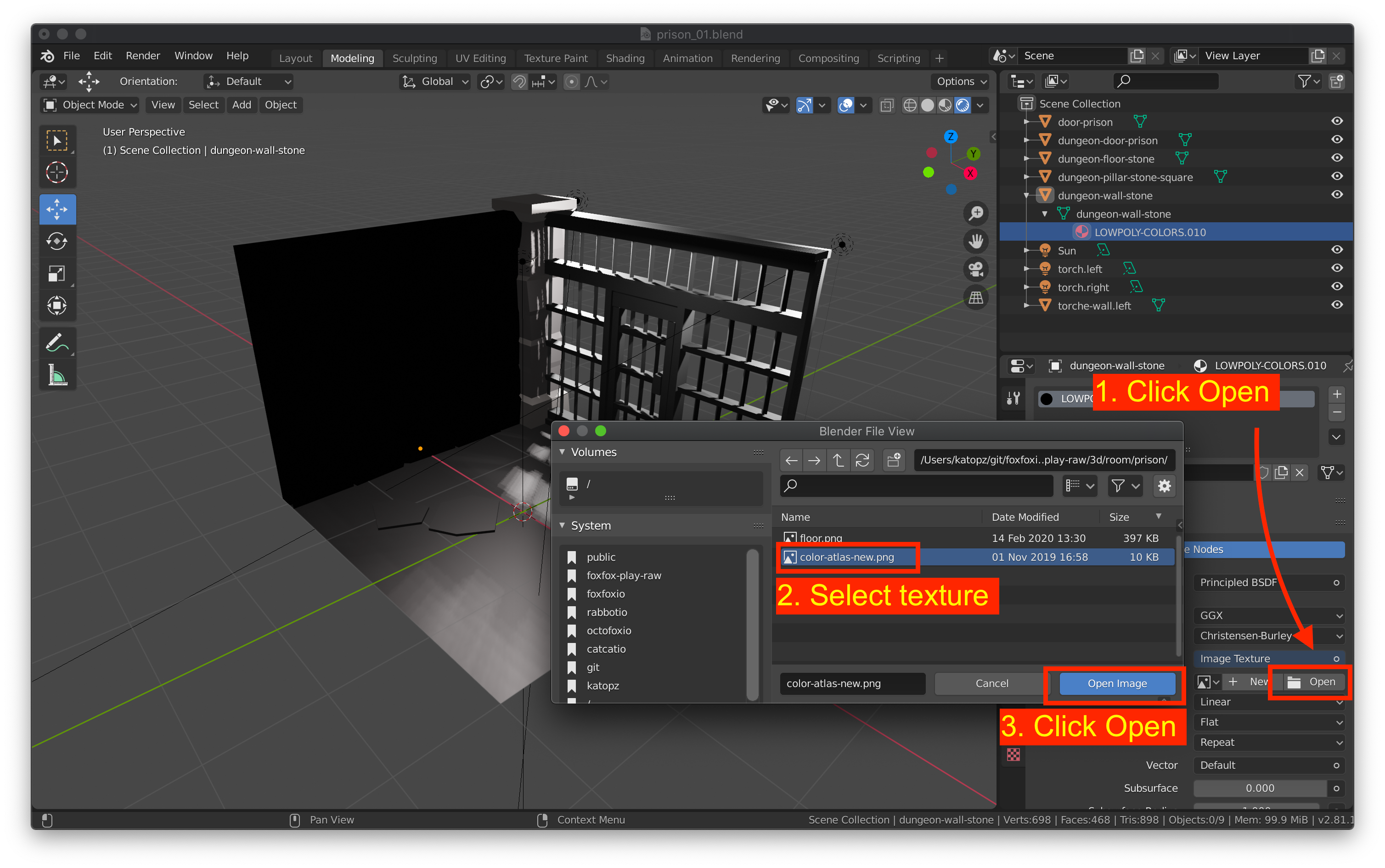
Once you have installed Blender, you can open the FBX file. To do this, open Blender and select the “File” menu. Then select “Import” and then “FBX”. You will then be presented with a file browser window. Navigate to the FBX file you wish to open and select it. Blender will then open the FBX file.
Step 3: Review the File
Once the FBX file is open in Blender, you can review the file. You can use the 3D view window to view the model in 3D. You can also use the Outliner window to review the objects in the scene. In addition, you can use the Properties window to review the settings for the objects in the scene.
Step 4: Make Adjustments to the File
Once you have reviewed the file, you can make adjustments to the file. You can use Blender’s powerful modeling and animation tools to make adjustments to the file. For example, you can move, rotate, and scale objects in the scene. You can also add materials, textures, and lighting to the scene. In addition, you can animate the objects in the scene.
Step 5: Export the File
Once you have made the adjustments to the file, you can export the file. To do this, select the “File” menu and then select “Export”. Then select “FBX” from the list of export options. You will then be presented with a file browser window. Navigate to the location you wish to save the file and give it a name. Then select “Export FBX”. Blender will then export the file.
Conclusion
In this tutorial, we went over how to open an FBX file in Blender. We went over how to download and install Blender, how to open the FBX file, how to review the file, how to make adjustments to the file, and how to export the file. With these steps, you should be able to open an FBX file in Blender and make the necessary adjustments to get the best results.
