Blender Fbx Export Settings For Unity
Blender FBX Export Settings for Unity
Do you want to export an FBX file from Blender to Unity? It's a straightforward process, but you need to pay attention to some settings to ensure the model looks great in the game engine. In this tutorial, we'll cover everything you need to know about Blender FBX export settings for Unity.
What is FBX?
FBX is a popular 3D file format that was originally developed by Autodesk. It's widely used for exchanging 3D models between different applications, such as between Blender and Unity. FBX files can store a variety of data, including meshes, textures, animation, cameras, and lights.
Exporting an FBX from Blender
Before you can export an FBX from Blender, you need to make sure your model is ready for export. This includes ensuring that the model is in the correct pose, is properly textured, and has the correct scale. Once your model is ready, you can export it as an FBX file by going to File > Export > FBX.
FBX Export Settings
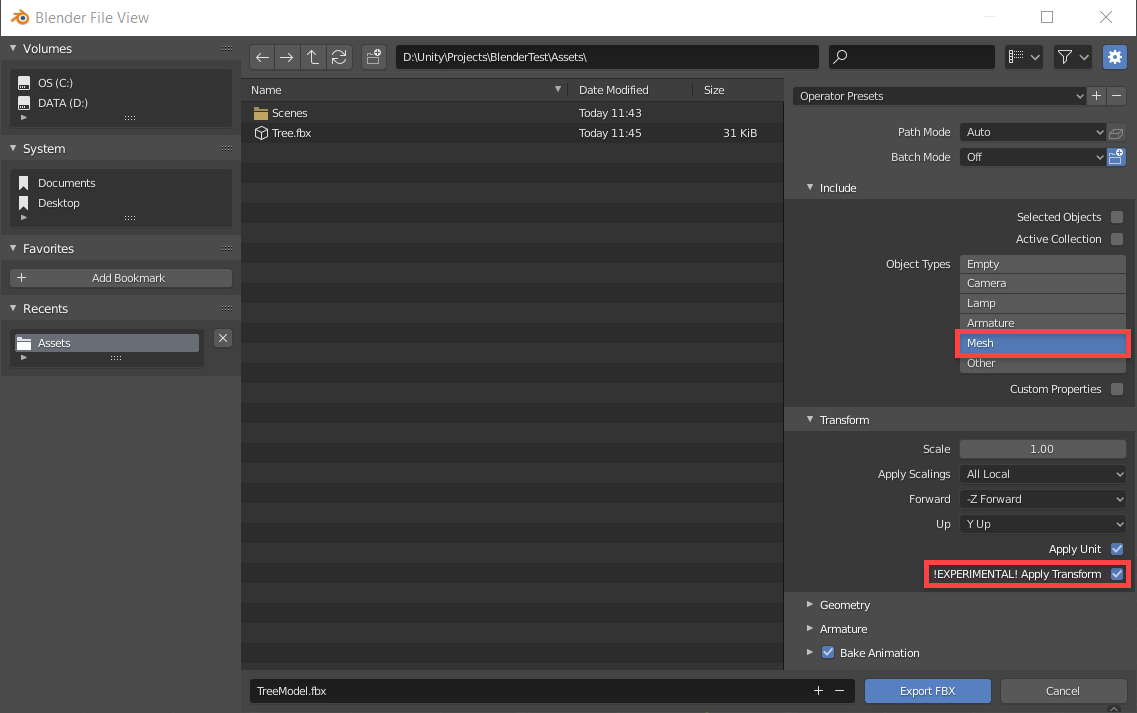
When you export an FBX file from Blender, you'll be presented with a variety of settings. It's important to pay attention to these settings, as they will affect how your model looks in the game engine. Here are the most important settings to keep in mind:
Scale
The scale setting is used to determine how large or small your model will be in the game engine. It's important to make sure the scale is set correctly, as a model that is too large or too small can look out of place in the game. The default scale for Blender is 1, so you should leave it at that unless you need to adjust the size of the model.
Axis Conversion
The axis conversion setting is used to tell the game engine which coordinate system to use when displaying the model. The default is Z-Up, but depending on the game engine you're using, you may need to change this setting to Y-Up. It's important to make sure this setting is correct, as an incorrect setting can cause the model to be displayed incorrectly.
Object Types
The object types setting is used to tell the game engine which types of data to include in the export. The default is Mesh, but you can also select Armature, Camera, and Lights if you need to export those objects. It's important to make sure you select the correct object types, as a missing object can cause the model to be displayed incorrectly in the game engine.
Apply Modifiers
The apply modifiers setting is used to tell the game engine to apply any modifiers that have been applied to the model. It's important to make sure this setting is checked, as not doing so can cause the model to look different in the game engine than it does in Blender. If you're using modifiers, make sure this setting is checked.
Conclusion
Exporting an FBX file from Blender to Unity is a straightforward process, but it's important to pay attention to the settings. By making sure the correct settings are selected, you can ensure that your model looks great in the game engine. Hopefully this tutorial has given you a better understanding of Blender FBX export settings for Unity.
