How To Download A Sketchfab Model
Monday, January 27, 2025
Edit
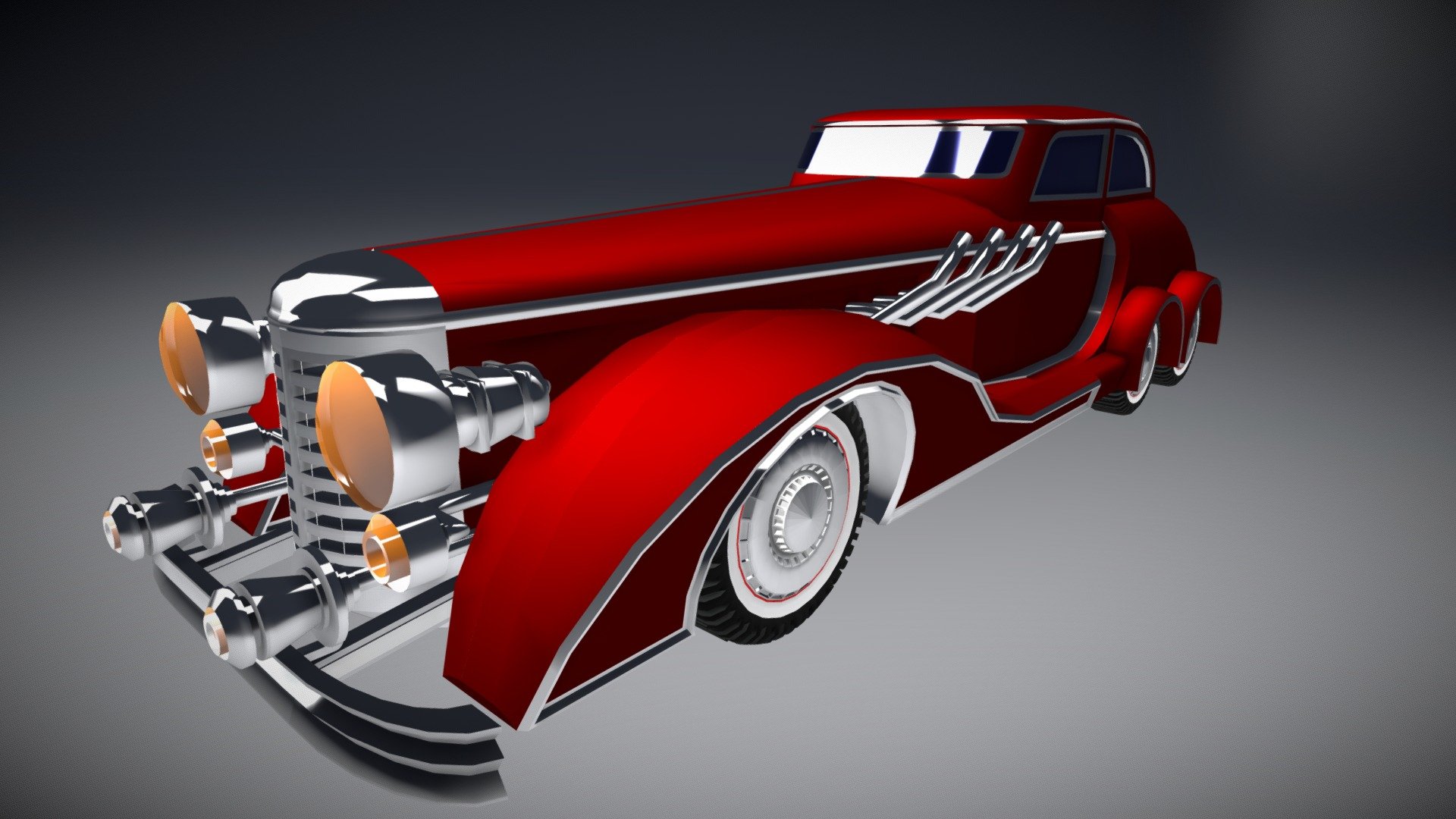
How To Download A Sketchfab Model
Introduction
Sketchfab is an online platform for viewing, sharing, and downloading 3D models. It is used by designers, 3D artists, developers, and hobbyists who require 3D content for their projects. With Sketchfab, it is possible to download 3D models in a variety of different file formats, allowing users to create their own 3D models from scratch, or utilize the existing models from the Sketchfab library. In this tutorial, we will learn how to download a Sketchfab model and use it for our own projects.
Step 1: Finding a Model
The first step in downloading a Sketchfab model is to find the model that you would like to download. You can search for specific models by keyword in the Sketchfab search bar, or browse through the many categories of models available in the Sketchfab library. Once you have found the model that you would like to download, click on the model to open the page and view the model in 3D.
Step 1.1: Download Button
On the right-hand side of the page, you will see a “Download” button. Click on this button to open the download menu. This menu will allow you to choose the format, size, and resolution of the model that you would like to download.
Step 2: Selecting a Format
The next step is to select the file format that you would like to download the model in. The available file formats will depend on the model, but generally, Sketchfab supports the following formats: FBX, glTF, OBJ, STL, and USDZ.
Once you have selected the format, click on the “Download” button at the bottom of the menu to begin the download process. It is important to note that some formats may require additional plugins or software to open.
Step 3: Setting a Resolution
In the download menu, you also have the option to select the resolution of the model. This option is only available for certain formats, such as FBX, OBJ, and glTF. You can select a low, medium, or high resolution option, depending on the size and complexity of the model. If you are unsure of the resolution that you need, it is recommended to select the medium option.
Step 4: Downloading the Model
Once you have selected the format and resolution of your model, click on the “Download” button at the bottom of the menu to begin the download process. Depending on the size of the model, this process may take a few minutes. When the download is complete, you will be able to access the model in the file format that you selected.
Conclusion
In this tutorial, we learned how to download a Sketchfab model and use it for our own projects. We discussed the various file formats available, as well as the resolution options that are available depending on the format of the model. We also looked at the steps required to download a model, including finding the model, selecting the file format and resolution, and downloading the model. With this knowledge, you are now ready to start downloading and creating your own 3D models with Sketchfab.
