Making 3d Models For Unreal Engine 4
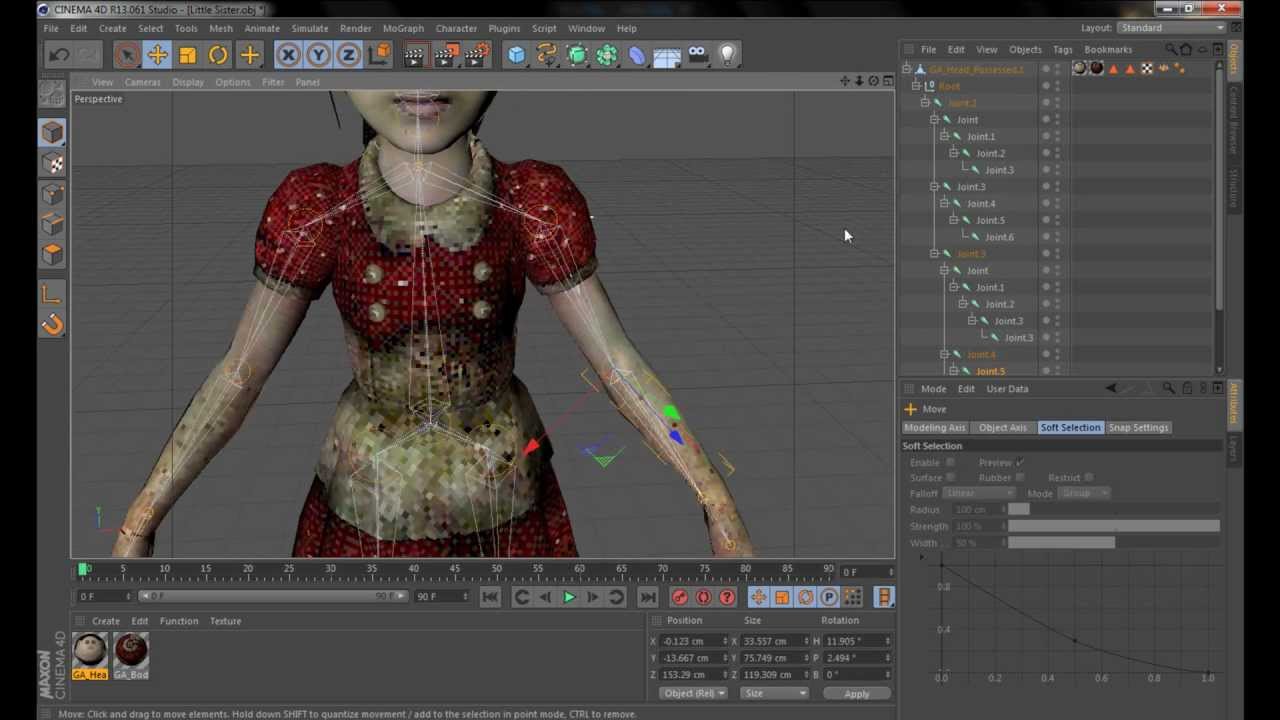
Making 3D Models for Unreal Engine 4
Introduction
Unreal Engine 4 (UE4) is a popular game engine that allows users to create 3D models, games, and virtual reality experiences. It is the most popular game engine among professional game developers, and is quickly becoming the go-to choice for indie developers as well. UE4 is a powerful tool for creating realistic 3D models and scenes, and it can be daunting to learn how to use it. This tutorial will walk you through the basics of building 3D models for use in UE4.
Getting Started
Before you begin, you'll need to download and install the latest version of Unreal Engine 4. You can find the download link on their website. Once you have the software installed, you'll need to create a new project. This will create a new folder in your computer's file system that will contain all of the files associated with your project. You'll also need to install a 3D modeling program, such as Blender or Maya. These programs are used to create the 3D models that will be used in UE4.
Creating the Model
Once you have your software installed and your project folder created, it's time to start creating your 3D model. Using your 3D modeling program, you can create the model of your choice. There are many tutorials online that can help you learn how to use the software. Once you have created your model, you will need to export it as an FBX file. This is the file format that Unreal Engine 4 uses to import 3D models.
Importing the Model into UE4
Once you have exported your model as an FBX file, you'll need to import it into UE4. To do this, open up the UE4 project folder and navigate to the Content Browser. Once you're in the Content Browser, you can drag and drop your FBX file into the Content Browser window. This will create a new asset in the Content Browser that contains your 3D model.
Adding Textures
Once you have imported your model into UE4, you'll need to add textures to it. Textures are images that are used to give the 3D model a more realistic look. To add textures, open up the material editor and select the material type you want to use. You can then select the textures you want to use and drag and drop them onto the material. You can also adjust the settings of the material to get the look you want.
Adding Lighting
Once you have added textures to your 3D model, it's time to add lighting. Lighting is used to make the 3D model look more realistic. To add lighting, you can use the various lighting tools in UE4. You can create directional lights, point lights, and spot lights to illuminate your scene. You can also adjust the intensity and color of the lights to get the desired look.
Rendering the Model
Once you have your 3D model set up, you can render it. Rendering is the process of creating a final image or animation from the 3D model. To render your model, you can use the rendering tools in UE4. You can adjust the settings to get the desired look, and then render the scene. Once you have rendered your scene, you will have a finished 3D model that you can use in your game or virtual reality experience.
