How To Make A Chair In Sketchup
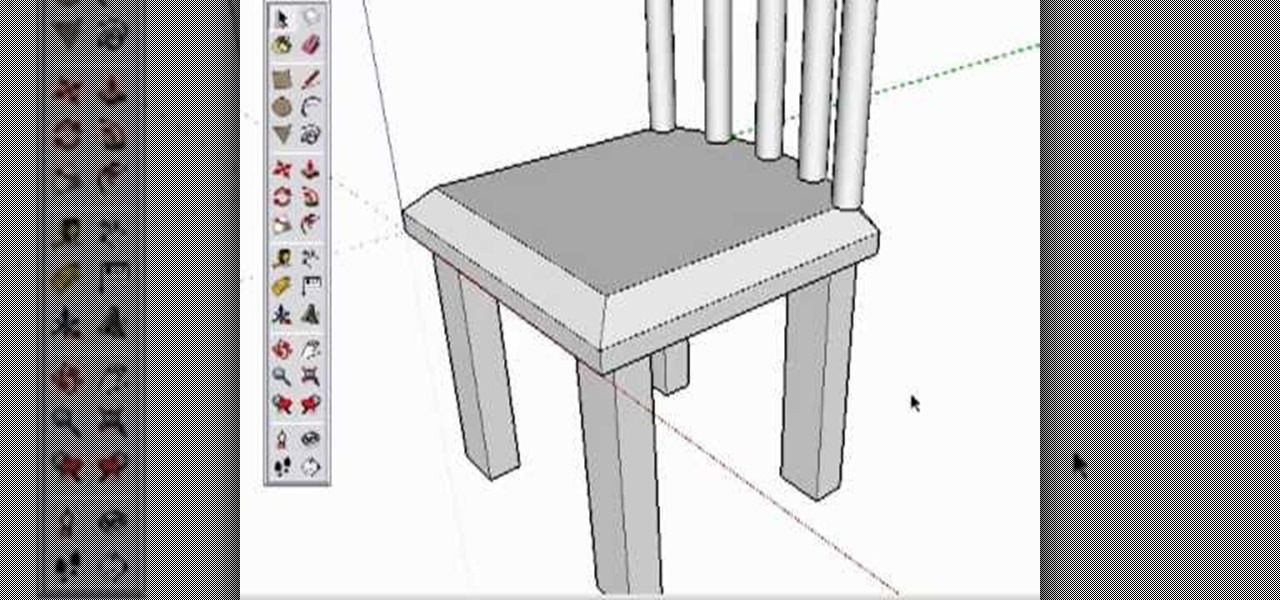
How To Make A Chair In Sketchup?
Introducing Sketchup
Sketchup is a 3D modeling software used by woodworkers, designers, and architects for creating a variety of objects and structures. With Sketchup, you can visualize and design projects from the ground up. It's an incredibly powerful tool, and learning how to use it can open up a world of possibilities. In this tutorial, we'll be going over the basics of Sketchup, and ultimately, how to create a chair using the software.
Setting Up Your Environment
The first step in creating a chair in Sketchup is to set up your environment. This includes selecting the right template, setting up the viewport, and understanding the tools available. When you open Sketchup, you'll be presented with a template selection screen. Here, you can select the template that best suits your project. For this tutorial, we'll be using the "Architecture Design" template.
Once the template is selected, you can begin setting up the viewport. The viewport is the 3D window in which you'll be designing your chair. To adjust the view, you can use the standard Zoom and Orbit tools. You can also adjust the Grid settings, which will help you ensure that your chair is properly proportioned. Finally, you can adjust the Shadow settings to create more realistic lighting.
Drawing The Chair
Once you've set up your environment, it's time to start drawing the chair. To do this, you'll need to use the drawing tools in Sketchup. This includes the Line Tool, the Rectangle Tool, and the Arc Tool. With these tools, you'll be able to draw the basic shape of your chair. Once you have the shape drawn, you can move onto adding details and texture.
When adding details, you'll want to make sure that they're proportional and accurate. This is where the Measurement Tools can be invaluable. You can use the Measurement Tools to ensure that your chair is the correct size and that all the parts fit together properly. With practice, you'll get a better sense of how to use these tools.
Adding Textures And Colors
Once you have the basic shape of your chair complete, you can start adding textures and colors. Sketchup offers a variety of materials and colors for you to choose from. You can also add your own custom textures, if you choose. To do this, you'll need to use the Paint Bucket Tool. This tool will allow you to apply colors and textures to your chair.
In addition to colors and textures, you can also add components to your chair. This includes things like armrests, legs, and other components. To add components, you can use the Component Tool. This tool will allow you to quickly and easily add components to your chair. You can also adjust the size, rotation, and position of these components to get the exact look you want.
Rendering Your Chair
Once you've finished designing your chair, you can start rendering it. Rendering is the process of creating a realistic image of your chair. To do this, you'll need to use the Render Tool. This tool will allow you to adjust the lighting, shadows, and materials of your chair. You can also adjust the size and resolution of the image, so you can get the perfect image for your needs.
Conclusion
Making a chair in Sketchup is a great way to learn the basics of 3D modeling. With this tutorial, you've learned how to set up your environment, draw the chair, add textures and colors, and render your chair. With a bit of practice, you'll be able to create amazing 3D models in no time!
