Modeling A Cartoon Character In Blender
Wednesday, July 3, 2024
Edit
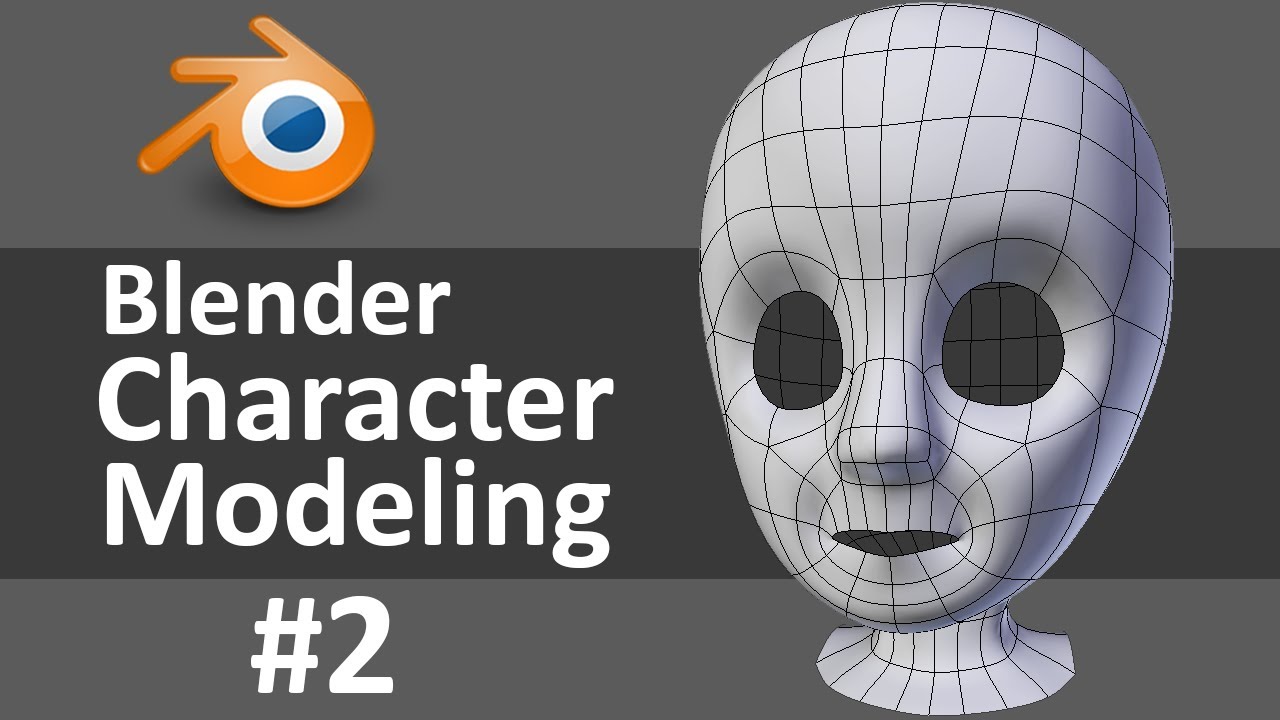
Modeling A Cartoon Character In Blender
Introduction
If you’re an aspiring 3D artist wanting to learn how to model a cartoon character in Blender, then you’ve come to the right place. Blender is a free and open source 3D graphics program with a large community of artists and users. It can be used to create anything from simple low-poly 3D models to complex 3D animations. In this tutorial, you’ll learn the basics of modeling a cartoon character in Blender. By the end of this tutorial, you’ll have a basic understanding of the modeling process, and the skills to create your own 3D cartoon characters.
Set Up Blender
Before you start modeling, you’ll need to set up Blender. If you don’t have Blender installed on your computer, you can download it for free from the official Blender website. Once you’ve downloaded and installed Blender, you’ll need to set up the interface. Blender has two main modes, Edit Mode and Object Mode. In Edit Mode, you can select, move, and manipulate objects in 3D space. In Object Mode, you can move, rotate, and scale the entire object. You can switch between these two modes by pressing the Tab key.
Create a Basic Mesh
Once you’ve set up Blender, you’re ready to start modeling. The first step is to create a basic mesh. This will be used as the foundation for your cartoon character. To create a basic mesh, go to the Create tab in the Tool Shelf and select the Cube or Plane option. This will create a simple 3D cube or plane. You can then select the object by clicking on it and resize it using the Scale Tool.
Add Subdivisions
Now that you have a basic mesh, you’ll need to add subdivisions. Subdivisions are used to give the mesh more detail and make it look more organic. To add subdivisions, go to the Modify tab in the Tool Shelf and select the Subdivide option. This will add more edges and vertices to the mesh, allowing you to manipulate it more easily. You can adjust the number of subdivisions by using the slider or entering a value in the box.
Modify the Mesh
Once you’ve added subdivisions, you can start to shape the mesh. You can do this by selecting individual vertices, edges, or faces and moving them around. You can also use the Extrude Tool to create more complex shapes. Keep in mind that you don’t have to be exact with your modeling – the goal is to create a basic shape that you can refine later.
Refine the Mesh
Once you’ve created a basic shape, you can refine it by adding more details. To do this, you can use the Smooth Tool to smooth out any rough edges, the Bevel Tool to add bevels to edges, and the Proportional Editing Tool to adjust the shape of the mesh. You can also use the Loop Cut and Slide Tool to add more edges and refine the shape of the mesh.
Texture the Mesh
Once you’ve refined the mesh, you can start to texture it. To do this, you’ll need to create a material for the mesh. You can do this by going to the Material tab in the Tool Shelf and selecting the New Material option. This will create a basic material for the mesh. You can then adjust the material settings to change the color, texture, and other properties of the material.
Conclusion
Modeling a cartoon character in Blender can be a fun and rewarding experience. By following the steps outlined in this tutorial, you should have a basic understanding of the modeling process, and the skills to create your own 3D cartoon characters. With practice and experimentation, you’ll soon be able to create more complex and detailed 3D models. Good luck!
