Creating Stl Files In Blender
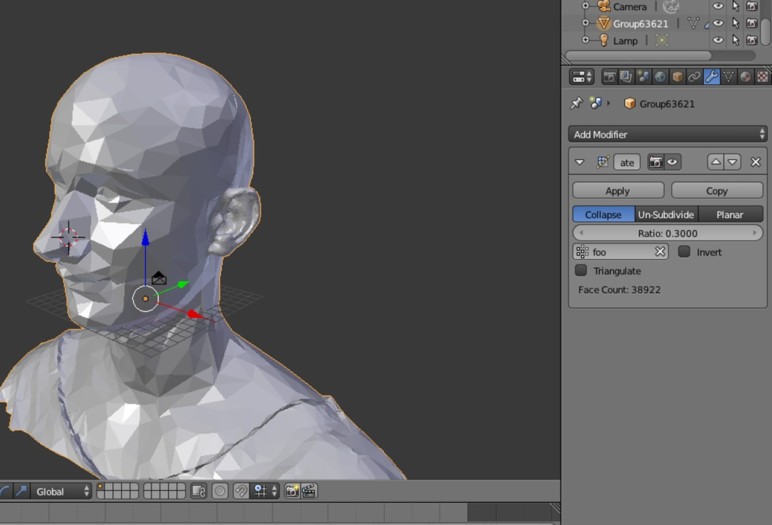
Creating STL Files in Blender
Are you looking to start creating 3D models and want to learn how to create STL files in Blender? This guide will provide you with the complete steps to follow to get started. Blender is an incredibly powerful 3D modeling software that has a large range of features for creating and manipulating 3D objects. STL files are the most common 3D printing file format, making it easy to take your 3D object from Blender to a 3D printer. This guide will walk you through each step of the process.
What is an STL File?
The STL (Stereolithography) file format is the most commonly used 3D printing file format. It is an ASCII text-based file format, meaning it is a series of characters and numbers that are arranged in a specific way. The STL file format is used to represent the surface geometry of a 3D object, and is especially useful for 3D printing. All 3D printers have their own specific software that can read STL files, allowing for easy 3D printing of your model.
Creating a 3D Model in Blender
The first step in creating an STL file is to create a 3D model in Blender. Blender is a free open source 3D modeling software that provides a wide range of tools for creating 3D models. To get started, you will need to download the latest version of Blender and install it on your computer. Once installed, you can start creating your 3D model. Blender provides a range of tools for creating 3D objects, such as primitives, meshes, and curves. You can also use the sculpting tools to add detail to your 3D model.
Exporting an STL File in Blender
Once you have completed your 3D model, you can then export it as an STL file. To do this, you will need to select the object you wish to export, then go to the File menu and select the Export option. In the Export window, you will need to select the STL format, then choose which version of the STL format you would like to use. Once you have set the options, you can then click the Export button and the STL file will be created.
Checking the STL File in a 3D Printing Software
Once you have exported the STL file, it is important to check it in a 3D printing software. This is because the STL file may contain errors that will cause the 3D printer to fail. The most common 3D printing software is Cura, which is free to download and use. Once you have downloaded and installed Cura, you can then open the STL file in it and check for any errors. If there are any errors, you will need to fix them in Blender before attempting to print the model.
Printing the STL File
Once you have checked the STL file for errors and fixed any that may be present, you can then send it to the 3D printer. To do this, you will need to connect the 3D printer to your computer and select the STL file you wish to print. Most 3D printers will have their own software for sending the file to the printer, so make sure you follow the instructions for your specific printer. Once the file has been sent, the 3D printer will start printing the model.
Conclusion
Creating STL files in Blender is a great way to get started with 3D printing. Blender is a powerful 3D modeling software that provides a wide range of tools for creating 3D objects. The STL file format is the most commonly used 3D printing file format, making it easy to take your 3D object from Blender to a 3D printer. This guide has provided you with the complete steps to follow to create an STL file in Blender and print it with a 3D printer.
