How To Put Sketchfab Models Into Blender
How To Put Sketchfab Models Into Blender
Introduction
Blender is a powerful 3D modeling, animation and rendering software used by professionals in the entertainment, architecture, design, and visual effects industries. It can be used to create stunning 3D visualization, animations, and virtual reality experiences. If you want to create your own 3D models, you can use Sketchfab, an online 3D modeling platform.
Sketchfab offers a library of 3D models that can be downloaded and used in your projects. This tutorial will show you how to import Sketchfab models into Blender and use them to create your own 3D designs. We will also look at some tips for using the Sketchfab models in Blender.
Downloading the model from Sketchfab
The first step is to find and download the model from Sketchfab. You can search for models using keywords or browse the library by category. Once you have found the model you want to use, you can download it in a number of formats, including .obj, .stl, .dae, and .fbx.
You can also adjust the model settings before downloading it. For example, you can adjust the texture resolution, the amount of detail, and the number of polygons. This can help you make sure that the model is optimized for use in Blender.
Importing the model into Blender
Once you have downloaded the model, you can import it into Blender. To do this, open Blender and go to the ‘File’ menu. Then select ‘Import’ and select the type of file you downloaded from Sketchfab. Blender will then open the model and you can start to work on it.
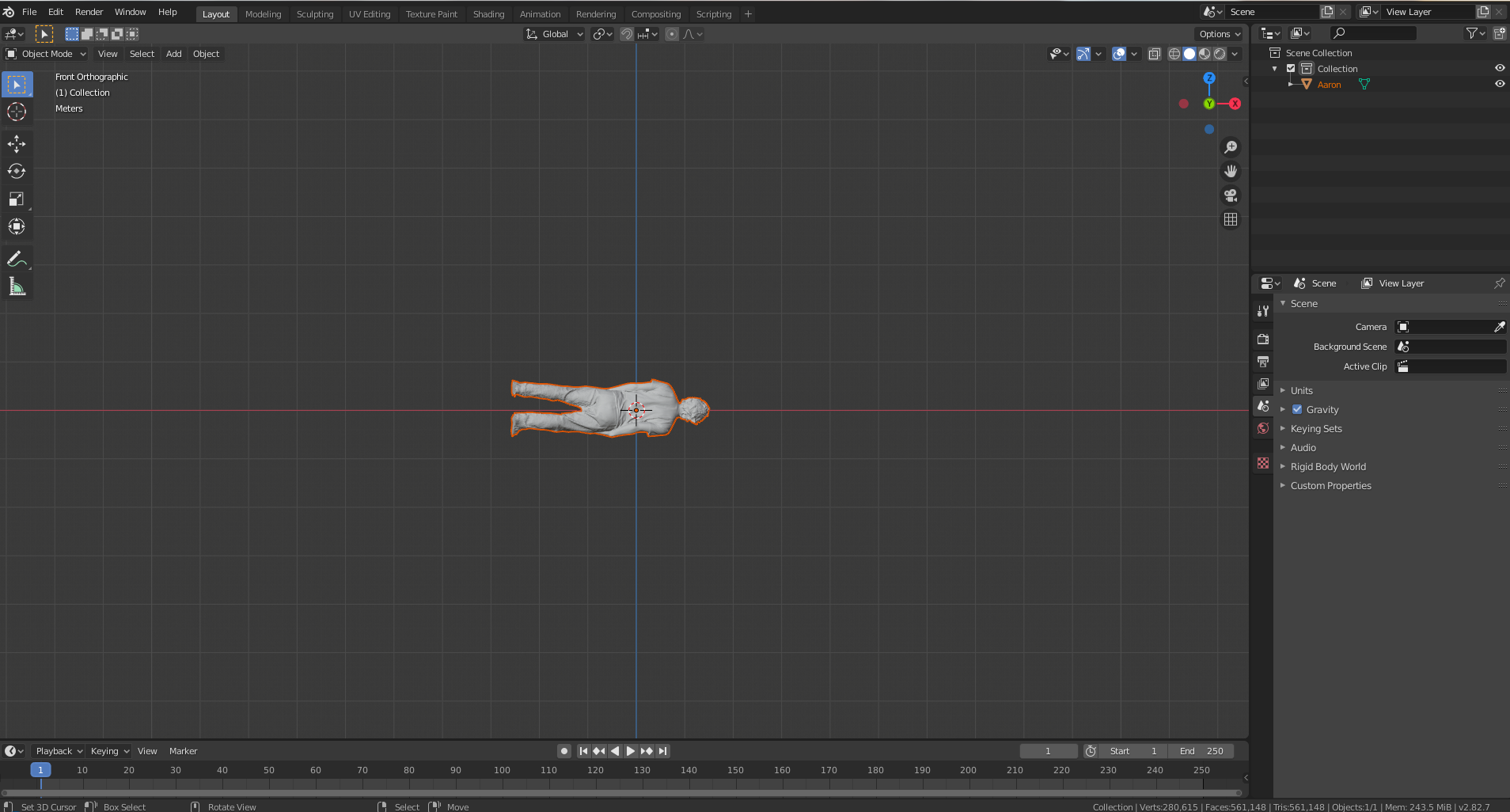
When the model is imported into Blender, you will be able to see it in the ‘Outliner’ window. This window shows all the objects in the scene and allows you to select them and adjust their properties. You can also use the ‘Viewport’ window to manipulate the model and adjust its position, scale, and rotation.
Using the model in Blender
Once you have imported the model into Blender, you can start to use it in your project. You can use the model as a base for your own 3D designs. For example, you can add additional objects, adjust the model’s textures, and animate the model.
You can also use the model in combination with other Blender features. For example, you can use the model as part of a lighting setup or use it to create a background for a scene. Blender also offers a range of tools that can be used to adjust the model, such as the ‘Sculpt’ tool and the ‘Mesh’ tool.
Conclusion
In this tutorial, we have looked at how to put Sketchfab models into Blender. We have seen how to find and download the model from Sketchfab, how to import it into Blender, and how to use the model in Blender. We have also looked at some tips for using the model in Blender.
Using Sketchfab models in Blender can help you create stunning 3D designs. By following the steps outlined in this tutorial, you will be able to quickly and easily import and use Sketchfab models in your projects.
