How To Import A Fbx File Into Blender
Importing FBX Files Into Blender
Blender is a powerful open source 3D software that can be used to create 3D models and animations. One of the most popular file types that Blender can handle is the FBX format. FBX is an Autodesk format that stands for Film Box. It is an interchange format that allows you to import and export 3D models and animations between different 3D programs. In this tutorial, we will learn how to import an FBX file into Blender.
Step 1: Install Blender
The first step is to install Blender. You can download the latest version of Blender from the official website. Once you have downloaded the installer, follow the on-screen instructions to install Blender. Once installation is complete, you can launch Blender.
Step 2: Import the FBX File
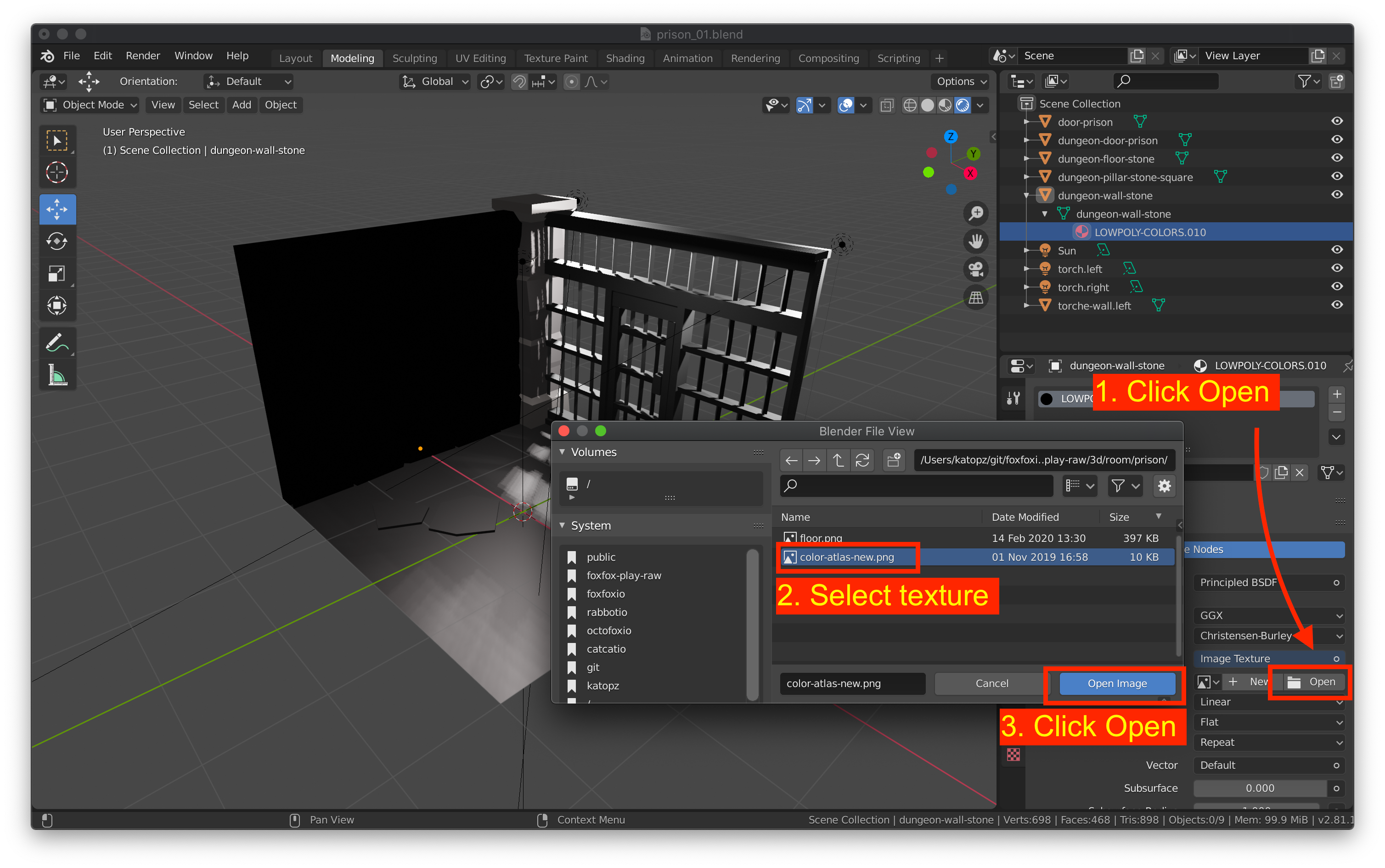
Once Blender is open, you can import the FBX file by going to the “File” menu and selecting “Import”. You will then be presented with a dialog box that will allow you to select the FBX file that you want to import. Select the file and click “Open”.
Step 3: Adjust the Import Settings
Once you have selected the FBX file, you will be presented with a dialog box that will allow you to adjust the import settings. Here, you can choose the type of geometry you want to import, the scale at which the object will be imported, and the coordinate system that the object will be imported into. When you are done, click “OK”.
Step 4: Review the Imported Model
Once the FBX file has been imported into Blender, you will be able to review the model by navigating the 3D viewport. Here, you can check to make sure that the model has imported correctly, adjust the orientation and scale of the model, and make any other adjustments that you deem necessary.
Step 5: Export the Model
Once you have reviewed the imported model, you can then export the model from Blender. To do this, go to the “File” menu and select “Export”. You will then be presented with a dialog box that will allow you to select the format that you want to export the model to. Select the desired format and click “Export”.
Conclusion
In this tutorial, we have learned how to import an FBX file into Blender. We have also learned how to adjust the import settings and how to review the imported model. Finally, we have learned how to export the model from Blender in a variety of formats. With these skills, you will be able to easily import and export FBX files in Blender.
