How To Create Stl File In Blender
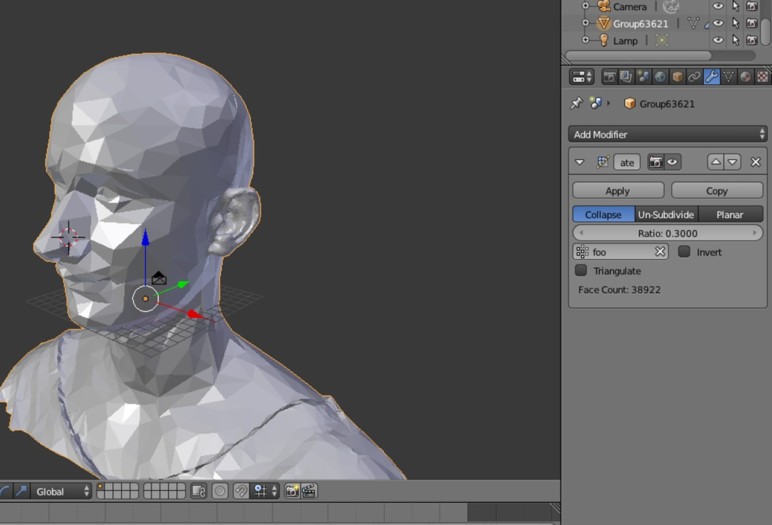
How To Create STL File In Blender
Blender is a free, open source 3D computer graphics software toolset used for creating animated films, visual effects, art, 3D printed models, interactive 3D applications, and video games. The software is available for Windows, Mac OS X, Linux, and FreeBSD. One of the features of Blender is the ability to create an STL (stereolithography) file, which is a type of 3D file that can be used in 3D printing.
Create a 3D Model in Blender
Before you can create an STL file in Blender, you must first create a 3D model. Blender has a wide variety of tools for creating 3D models, such as the Create panel, which is used to create basic meshes (e.g. cubes, cylinders, and spheres). You can also use the Modify panel to edit existing meshes, or create your own meshes using the Edit Mode. Once you have created a 3D model, you can save it as a .blend file and then export it as an STL file.
Export the 3D Model as an STL File
Once you have created your 3D model, you can export it as an STL file. To do this, go to File > Export > Stereolithography (.stl). This will open a window where you can select the type of STL file you would like to export (binary or ASCII). Select the type of file that you need and click the “Export STL” button. The STL file will be saved to the location of your choice. You can then use the STL file for 3D printing.
Check for Errors in the STL File
After exporting the STL file, it’s important to check for any errors. To do this, open the STL file in a 3D printing software such as Cura. Cura can be used to check for any errors in the STL file, such as overlapping faces, holes, or non-manifold edges. If any errors are found, you can go back to Blender and fix them before exporting the STL file again.
Prepare the STL File for 3D Printing
Once you have checked the STL file for errors and it’s ready for 3D printing, you can use a 3D printing software such as Cura to prepare the file for 3D printing. Cura can be used to adjust the settings, such as the layer height, filament type, extrusion width, and print speed. Once you have adjusted the settings, you can save the file as an .gcode file, which is the file type that 3D printers use.
Print the STL File
Once you have prepared the STL file for 3D printing, you can load the .gcode file onto your 3D printer and start printing. Depending on the size of the model and the settings you used, the 3D printing process can take anywhere from a few minutes to several hours to complete. Once the model is finished printing, you can inspect it for any errors or defects, and then start the post-processing process.
Conclusion
Creating an STL file in Blender is a relatively simple process. With the right tools and a bit of patience, anyone can create their own 3D models and export them as STL files. Once the STL file is ready for 3D printing, you can prepare it with a 3D printing software such as Cura and then print the model. With a bit of practice, you can create amazing 3D models that can be used for a variety of projects.
