How To Insert Plants In Sketchup
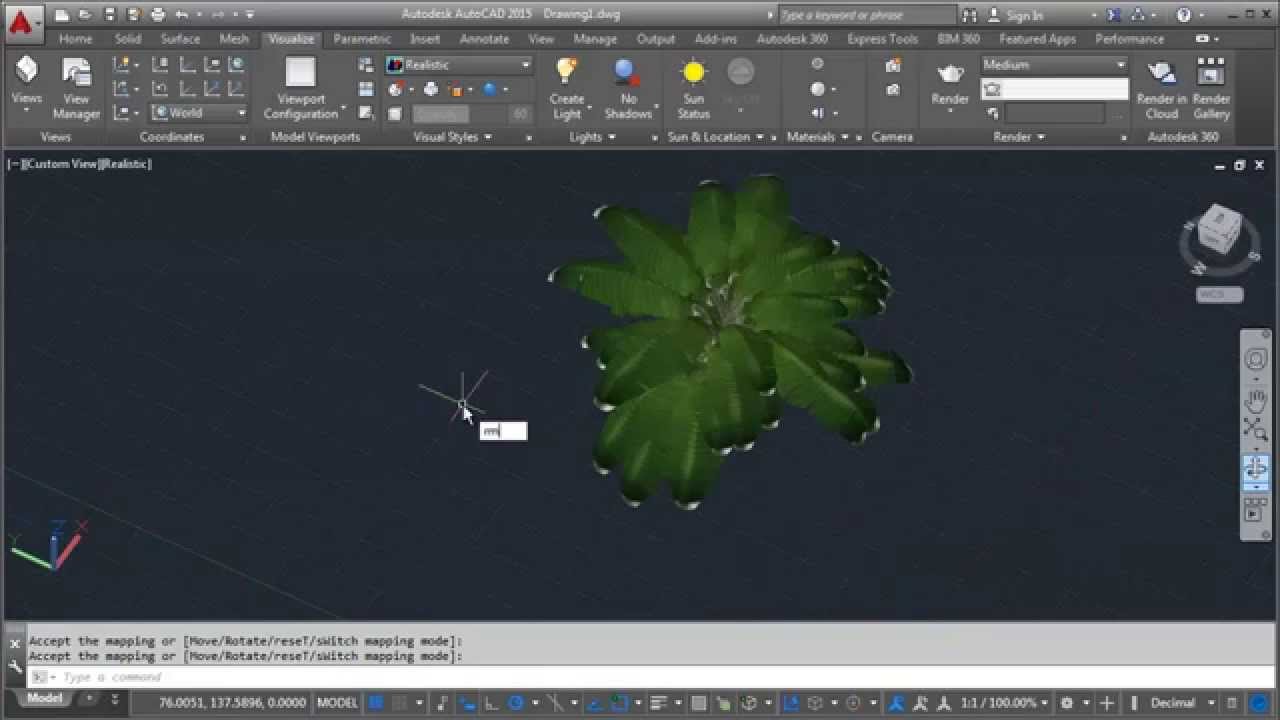
How To Insert Plants In Sketchup
Introduction
Sketchup is a powerful 3D modeling software used for a variety of design and engineering tasks. It is a great tool for architects, interior designers, and landscape designers alike. Sketchup is a great way to create 3D models of buildings, furniture, and other objects. It can also be used to create interesting and detailed landscapes. One of the most powerful features of Sketchup is its ability to insert plants into your scene. Inserting plants into Sketchup is an easy process that can make your 3D models look more realistic and professional.
Download Plant Models
The first step to inserting plants into your Sketchup scene is to download plant models. There are many websites where you can download 3D models of plants, trees, grasses, and other vegetation. Some of these websites are free, while others require a paid subscription. When downloading models, make sure to check the license agreement for any restrictions on use. Once you have downloaded the model, you will need to import it into Sketchup.
Import Plant Models
Once you have downloaded the plant models, you will need to import them into Sketchup. To do this, go to the File menu and select “Import.” Select the model you want to import and click “Open.” The model will be imported into your Sketchup scene. You can now manipulate the model by scaling, rotating, and positioning it in your scene.
Create Groups and Components
Once the model is imported into Sketchup, you will need to create groups and components. Groups and components allow you to manipulate the model more easily. To create a group, select the model and then go to the Edit menu and select “Make Group.” To create a component, select the model and then go to the Edit menu and select “Make Component.” You can then name the group or component and save it for future use.
Position the Plants
Once you have created the groups and components, you can position the plants in your scene. To do this, select the group or component and then use the Move and Rotate tools to position the plant where you want it. You can also use the Scale tool to make the plant larger or smaller. Once you have positioned the plant, you can save the scene for future use.
Add Materials and Textures
The last step is to add materials and textures to the plants. Materials and textures can make your scene look more realistic. To add materials and textures, select the plant and then go to the Materials window. In the Materials window, you can select from a variety of materials and textures, such as grass, leaves, bark, and more. You can then apply the material to the plant and save the scene for future use.
Conclusion
Inserting plants into Sketchup is an easy process that can make your 3D models look more realistic and professional. By downloading plant models, importing them into Sketchup, creating groups and components, positioning the plants, and adding materials and textures, you can easily insert plants into your Sketchup scene. With a few simple steps, you can add a touch of realism to your Sketchup models.
