Import 3d Model Into Unity
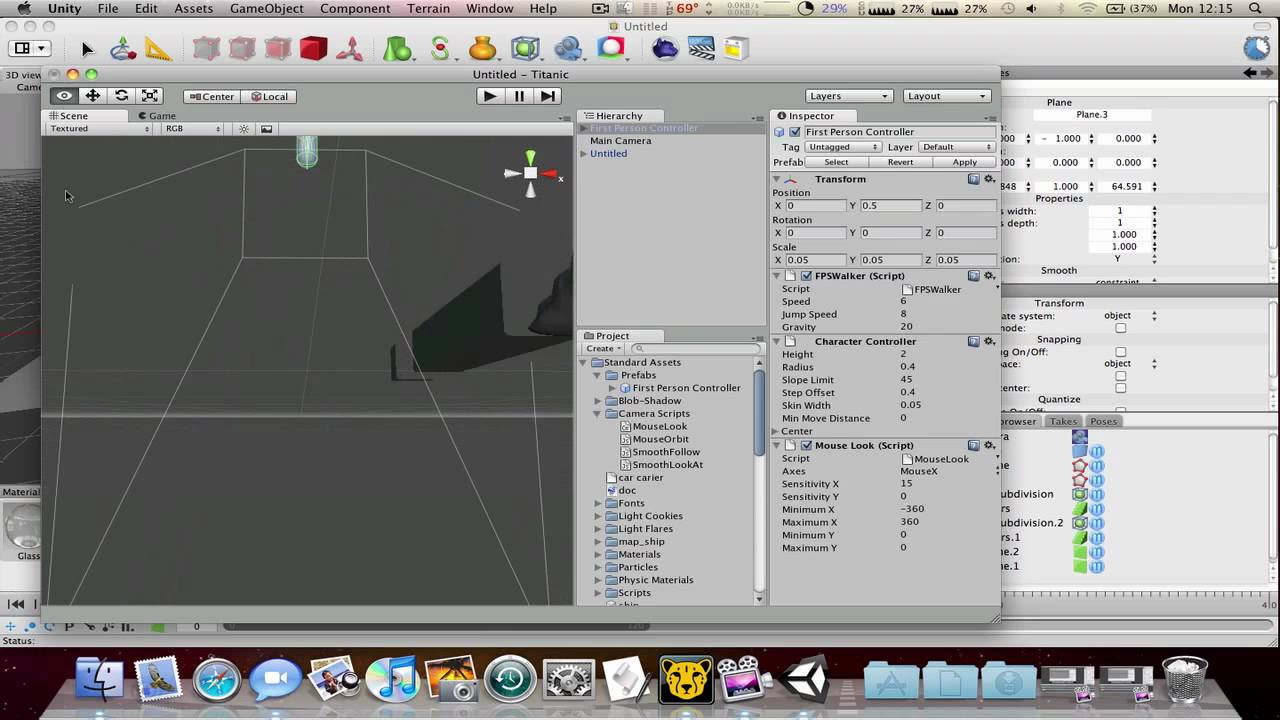
How to Import 3D Models into Unity
Introduction to Unity
Unity is a cross-platform game engine developed by Unity Technologies, primarily for video game development and real-time simulation. The engine is written in C++ and is used to create 2D, 3D, virtual reality and augmented reality games, as well as simulations and other interactive applications. It is used by millions of developers worldwide, from independent game developers to large triple-A studios. Unity provides tools for developers to easily create and deploy their games and applications on multiple platforms. This tutorial will walk you through the process of importing 3D models into Unity.
Finding 3D Models
The first step in importing 3D models into Unity is to find a model that you would like to use. There are a variety of resources available for finding 3D models, such as the Unity Asset Store, TurboSquid and Sketchfab. All of these sites have a wide selection of 3D models to choose from and most of them offer free downloads as well. Once you’ve chosen a model, you can download it in the file format of your choice.
Importing the Model into Unity
Once you’ve downloaded the 3D model, you can import it into Unity. To do this, go to the Assets menu at the top of the Unity window and select Import New Asset. This will open a window that allows you to browse your computer for the 3D model. Once you’ve found the model, simply select it and click Import. Unity will then import the model into your project.
Inspecting the Model
Before you begin using the model, you should take a few moments to inspect it and make sure that everything looks correct. To do this, select the model in the Project window and then click the Inspector tab at the top of the Unity window. This will open a window that displays information about the model, such as its name, size, format and materials. If everything looks correct, you can move on to the next step.
Adding the Model to the Scene
Now that the model has been imported into your project, you can begin adding it to the scene. To do this, drag the model from the Project window into the Scene view. This will add the model to the scene and you can move it around and adjust its position and rotation as needed. You can also add materials to the model to give it a unique look.
Adding Physics to the Model
If you want to make the model interactive, you can add physics to it. To do this, select the model in the Scene view and then click the Add Component button in the Inspector window. This will open a window that allows you to select a physics component to add to the model. You can choose from a variety of components, such as Rigidbody, Character Controller, Collider and more. Once you’ve chosen a component, click Add and the physics will be added to the model.
Conclusion
In this tutorial, you’ve learned how to import 3D models into Unity and add physics to them. Once you’ve imported the model and added any physics components, you can begin working with it in the scene. Now you have the knowledge needed to create amazing interactive experiences with 3D models in Unity!
