How To Make A 3d Character Move In Unity
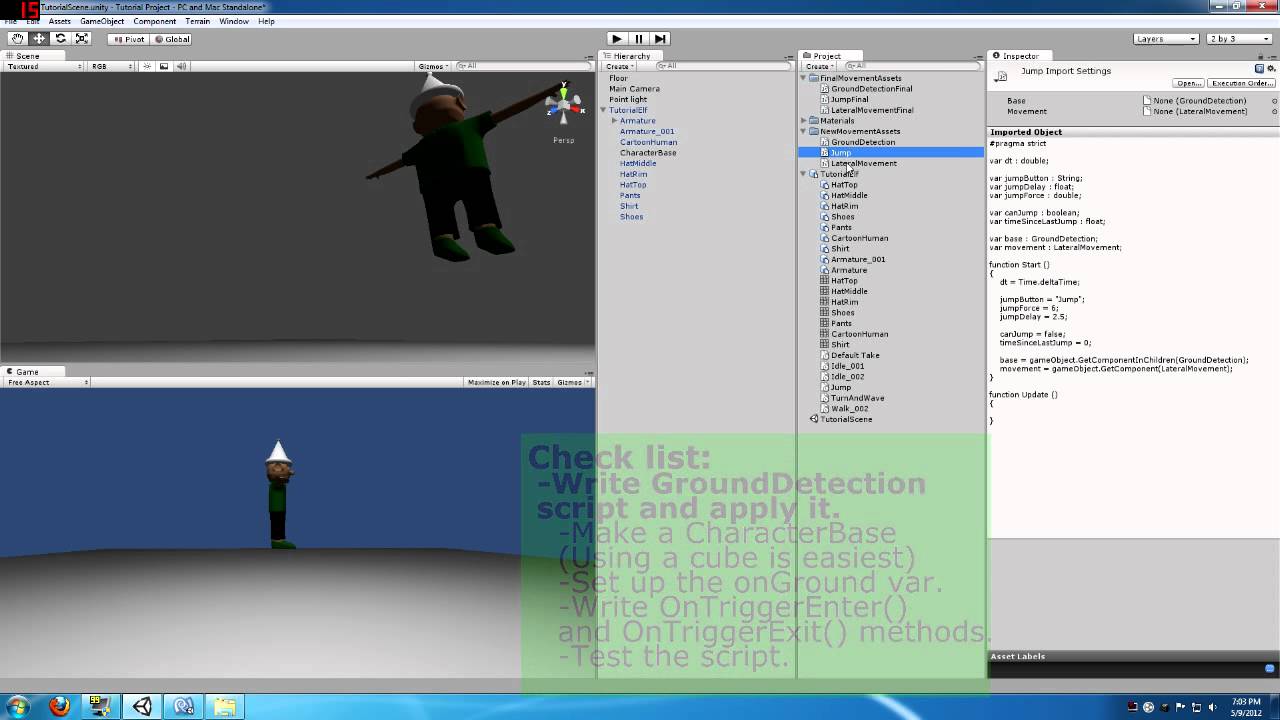
How To Make A 3D Character Move In Unity
Introduction
Unity is a powerful game engine and development environment that is used by millions of game developers. Unity is used to create games for both desktop and mobile platforms, and it has an intuitive user interface that makes it easy to create and customize 3D characters. In this tutorial, we will explore how to make a 3D character move in Unity. We will cover the basics of character movement, including using the CharacterController component and the animations associated with it. We will also explore some of the advanced features of Unity, such as scripting and particle effects, to make the character move in a more dynamic and interesting way.
Setting Up the Character and Scene
Before we can make our character move, we first need to set up the character and the scene. To do this, we need to create a new project in Unity. Once the project is created, we need to import the 3D character model and textures. We can do this by going to the Assets menu and selecting “Import Package”. We then select the 3D character model and textures that we want to use. We also need to create a scene in Unity by creating a new scene. Once the scene is created, we can drag and drop the 3D character model into the scene.
Adding the Character Controller Component
Once we have the 3D character model in the scene, we need to add the CharacterController component to the character. The CharacterController component allows us to control the character’s movement. To add the CharacterController component, we need to select the character in the scene and then go to the Inspector window. In the Inspector window, we can click on the “Add Component” button and select the CharacterController component from the list of components.
Animating the Character
Once we have the CharacterController component added to the character, we need to animate the character. We can do this by creating a new Animation Clip in the Animation window. We can then create the animations that we want the character to perform, such as walking, running, jumping, and so on. We can also add keyframes to the animation clip to make the character move more smoothly.
Adding the Character Controller Script
Once we have the character animated, we need to add the Character Controller script to the character. This script allows us to control the character’s movement using keyboard or gamepad inputs. To add the Character Controller script, we need to select the character in the scene and then go to the Inspector window. In the Inspector window, we can click on the “Add Component” button and select the Character Controller script from the list of scripts.
Adding Particle Effects
We can also add particle effects to the character to make it look more dynamic and interesting. Particle effects can be used to simulate things like smoke, fire, and explosions. To add particle effects, we need to select the character in the scene and then go to the Inspector window. In the Inspector window, we can click on the “Add Component” button and select the Particle System component from the list of components. We can then create the particle effects that we want the character to have.
Conclusion
In this tutorial, we explored how to make a 3D character move in Unity. We covered the basics of character movement, including using the CharacterController component and the animations associated with it. We also explored some of the advanced features of Unity, such as scripting and particle effects, to make the character move in a more dynamic and interesting way. By following the steps outlined in this tutorial, you will be able to create a 3D character that can move in Unity.
