3ds Max Change Color Of Object
3ds Max Change Color of Object: A Beginner's Tutorial
Introduction
3ds Max is an amazing 3D modeling, rendering and animation software from Autodesk. It is widely used in the production of films, television programs, games, and architecture. It is an extremely powerful tool for creating stunning 3D visuals. One of the tasks that many 3D artists use 3ds Max for is changing the color of an object. In this tutorial, we will teach you how to change the color of an object in 3ds Max.
Step 1: Select the Object
The first step in changing the color of an object in 3ds Max is to select the object you want to change. You can do this by clicking on the object in the viewport or by selecting it in the Scene Explorer. Once you have selected the object, you can move on to the next step.
Step 2: Select the Material Editor
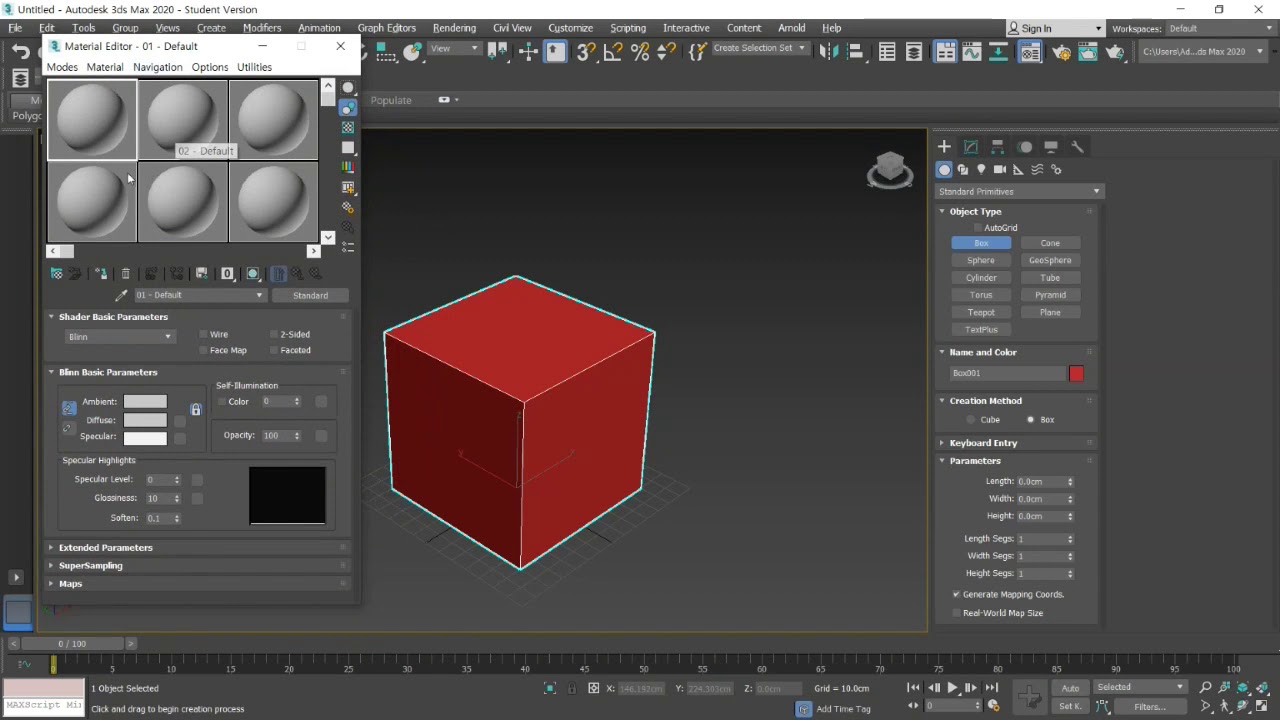
The next step is to open the Material Editor. This can be done by clicking on the Material Editor button in the top bar of the 3ds Max window or by pressing the M key on your keyboard. This will open the Material Editor window, which is where you can create, modify, and apply materials to objects.
Step 3: Create a New Standard Material
Once you have opened the Material Editor, you will need to create a new Standard Material. To do this, click on the Create New Material button in the Material Editor window. This will open a new dialog where you can choose the type of material you want to create. Select Standard Material and click OK. This will create a new Standard Material in the Material Editor window.
Step 4: Change the Color of the Material
Once you have created the new Standard Material, you can now change the color of the material. To do this, click on the color swatch in the Diffuse Color section of the Material Editor window. This will open a color picker where you can choose the color you want for your material. Select the color you want and click OK. This will apply the new color to the material.
Step 5: Apply the Material to the Object
Once you have changed the color of the material, you can now apply it to the object. To do this, select the object in the viewport or in the Scene Explorer. Then, click on the Assign Material to Selection button in the Material Editor window. This will apply the material to the selected object and change its color.
Conclusion
Changing the color of an object in 3ds Max is a fairly simple task. All you need to do is select the object, open the Material Editor, create a new Standard Material, choose the color you want, and apply the material to the object. This will change the color of the object to your desired color. In this tutorial, we have taught you how to change the color of an object in 3ds Max.
