How To 3d Print Solidworks Model
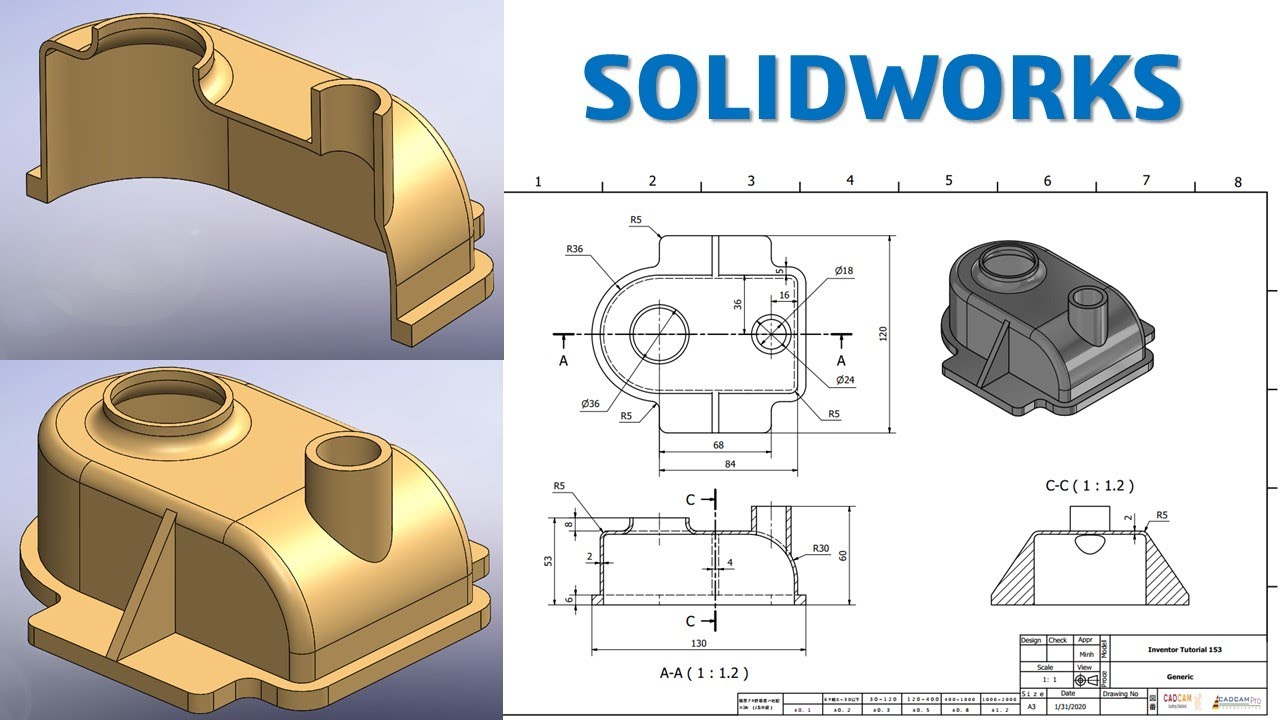
How To 3D Print Your Solidworks Model
Introduction
3D printing is one of the most popular and accessible technologies in the world of 3D design. With the help of 3D printing, you can create a physical object from a 3D model, whether it’s a prototype or a finished product. If you’re using Solidworks for your 3D designs, you may be wondering how you can bring your model to life with 3D printing. In this tutorial, we’ll walk you through the process of 3D printing a Solidworks model from start to finish.
Step 1: Export Your Model as an STL File
The first step in printing your Solidworks model is to export it as an STL file. STL stands for “stereolithography,” which is a type of file format used for 3D printing. To export your model, open your Solidworks project and click “File > Save As.” In the “Save As Type” drop-down menu, select “STL (*.stl)” and save the file to your computer.
Step 2: Prepare Your STL File for 3D Printing
Once you’ve exported your model as an STL file, the next step is to prepare it for 3D printing. This step is important to ensure that your model will print correctly. The first thing you’ll need to do is to check your model for any errors. To do this, open your STL file in a 3D printing software such as Cura or Slic3r. Once you’ve opened the file, inspect it for any errors or flaws in the design. If you find any, you’ll need to go back to Solidworks and fix them before proceeding.
Step 3: Choose a 3D Printer and Filament
Once your STL file is ready for 3D printing, the next step is to choose a 3D printer and filament. There are a wide range of 3D printers available, from consumer-grade machines to professional-grade machines. Depending on your budget and needs, you’ll need to choose a 3D printer that meets your requirements. You’ll also need to choose a filament type, such as PLA or ABS, that is compatible with your 3D printer.
Step 4: Slice Your STL File
The next step is to “slice” your STL file. Slicing is the process of converting your 3D model into a series of layers that can be printed by the 3D printer. To slice your model, open your STL file in a 3D printing software such as Cura or Slic3r. The software will then generate a series of layers that can be printed by your 3D printer.
Step 5: Print Your Model
Once your model is sliced and ready to print, the next step is to print your model. To do this, load your filament into the 3D printer and begin the printing process. Depending on the size and complexity of your model, it may take several hours to print. Once the printing process is complete, you can remove your model from the printer and inspect it for any errors or flaws.
Conclusion
3D printing a Solidworks model is a relatively straightforward process. Once you’ve exported your model as an STL file, you can prepare it for printing, choose a 3D printer and filament, slice your model, and begin printing. With the right tools and knowledge, you can bring your Solidworks model to life with 3D printing.
