How To Make A 2d Object 3d In After Effects
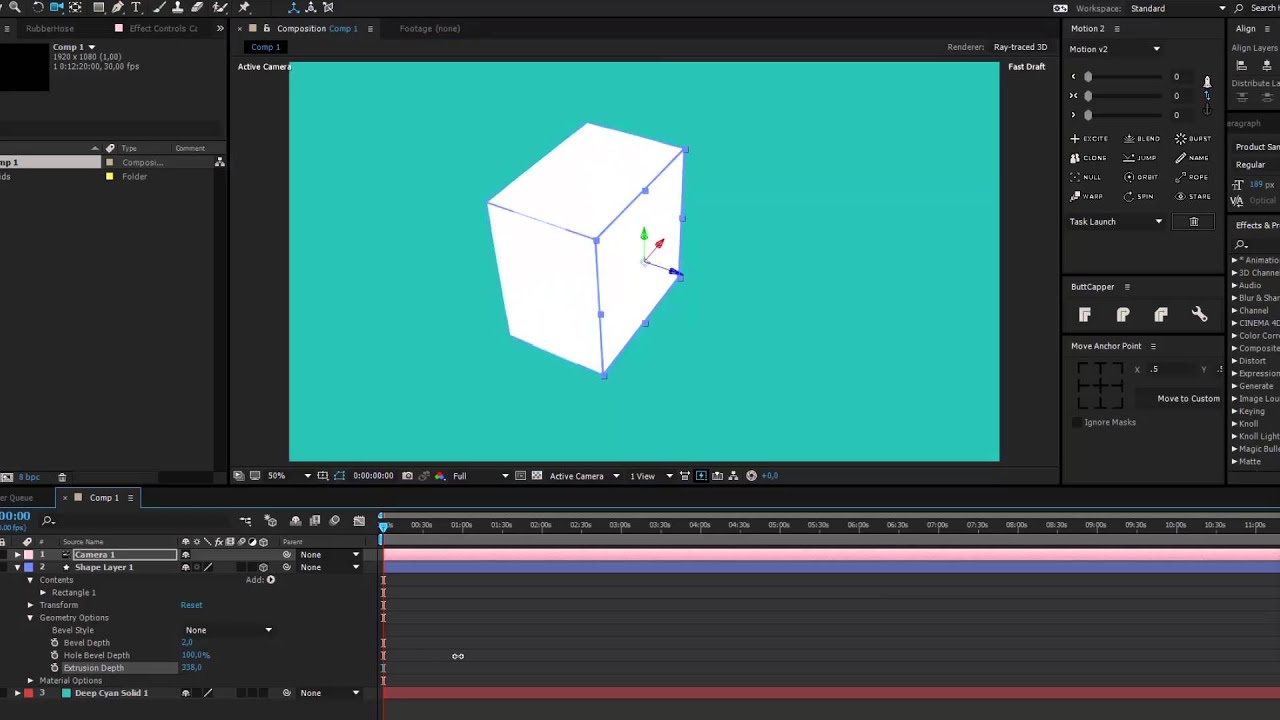
How To Make A 2d Object 3d In After Effects
What You Will Need to Make a 2D Object 3D in After Effects
Making a 2D object 3D in After Effects is a great way to bring your artwork to life. In this tutorial, we will be walking through the steps of how to make a 2D object 3D in After Effects. To make a 2D object 3D in After Effects, you will need the following:
- After Effects
- A vector image or illustration
- A camera layer
- A light layer
Step 1: Set Up Your After Effects Project
Before you begin making your 2D object 3D in After Effects, you will need to create a new project. To do this, open After Effects and click “File” then “New”. From here, you can choose the size and frame rate of your project. Once you have chosen these settings, click “OK” and your project will be set up.
Step 2: Import Your Vector Image or Illustration
Once your After Effects project has been set up, you can now import your vector image or illustration. To do this, click “File” then “Import”. From here, you can browse for the vector image or illustration that you want to use. Once you have located your image, select it and click “Open” and it will be imported into your After Effects project.
Step 3: Set Up Your Camera Layer
Now that you have your vector image or illustration imported, you can now set up your camera layer. To do this, click “Layer” then “New” then “Camera”. This will bring up the Camera Settings window. In this window, you can choose the type of camera you want to use, the lens, and the focal length. Once you have chosen these settings, click “OK” and your camera layer will be set up.
Step 4: Set Up Your Light Layer
Once your camera layer has been set up, you can now set up your light layer. To do this, click “Layer” then “New” then “Light”. This will bring up the Light Settings window. In this window, you can choose the type of light you want to use, the color of the light, and the intensity. Once you have chosen these settings, click “OK” and your light layer will be set up.
Step 5: Create Your 3D Object
Now that your camera and light layers are set up, you can now create your 3D object. To do this, select your vector image or illustration and click “Layer” then “3D”. This will turn your vector image or illustration into a 3D object. You can then move, rotate, and scale your object to get the desired result.
Step 6: Render Your 3D Object
Once you are happy with the look of your 3D object, you can now render it. To do this, click “Composition” then “Add to Render Queue”. This will bring up the Render Settings window. In this window, you can choose the output settings for your render. Once you have chosen these settings, click “OK” and your 3D object will be rendered.
Conclusion
Making a 2D object 3D in After Effects is a great way to bring your artwork to life. With the steps outlined in this tutorial, you should have no trouble creating your own 3D object in After Effects. So, what are you waiting for? Get started and make your own 3D objects today!
